How to Mod Your Android into a “Dumbphone” (Without Losing Maps or Spotify)
How to Turn Android into a Dumbphone (Without Losing Maps or Spotify)
The Problem with the $300 “Dumbphone” Trend
If you want to turn Android into a dumbphone, you are in the right place. Digital minimalism is having a moment, and tech companies are cashing in. If you search for ways to reduce your screen time, cure your doomscrolling, or reclaim your attention span, you’ll inevitably be told to buy a specialized minimalist device like the Light Phone II, a Punkt MP02, or a retro Nokia flip phone.
While the aesthetic of a $300 E-ink secondary device is undeniably appealing—and the philosophy behind them is sound—it comes with a major, often deal-breaking flaw: it sacrifices too much utility.
Sure, you’re free from the algorithmic clutches of TikTok and Instagram, but you’re also suddenly stranded without Google Maps when you’re lost in a new city. You’re unable to listen to your curated Spotify playlists or podcasts during your morning commute. You can’t scan a QR code menu at a restaurant, quickly authenticate a work login via Duo, or use a ridesharing app like Uber when you need a ride home late at night. The reality is that we live in a world fundamentally built around smartphones. These modern conveniences aren’t distractions—they are essential utilities.
The solution isn’t to buy a restrictive, expensive second device that forces you to carry two phones or abandon modern life entirely. The solution is a tech-modding approach to your current Android device.
By aggressively debloating your system via ADB (Android Debug Bridge), installing text-only minimalist launchers, and triggering automated grayscale modes, you can create a distraction-free tool that kills dopamine loops while retaining the essential modern utilities you actually need. Here is your step-by-step blueprint to modding your Android into the ultimate, uncompromising dumbphone.
Step 1: Turn Android into a Dumbphone via ADB Debloating
You can uninstall standard downloaded apps through your phone’s normal settings menu, but Android manufacturers bake in a lot of “bloatware” and system-level distractions (like native browsers, duplicate app stores, and unremovable social media stubs) that the regular settings menu won’t let you touch. To truly sanitize your phone and prevent “relapses,” we need to go deeper using Android Debug Bridge (ADB).
What You Need:
- A Windows, Mac, or Linux computer.
- A reliable USB cable.
- Your Android phone.
How to Use ADB to Debloat:
- Enable Developer Options: Go to Settings > About Phone and tap Build Number seven times until you see a prompt saying you are a developer.
- Enable USB Debugging: Go back to Settings > System > Developer Options and toggle on USB Debugging.
- Download ADB: Download the “SDK Platform Tools” directly from Google’s developer website onto your computer and extract the ZIP folder.
- Connect Your Phone: Plug your phone into your PC, open a terminal or command prompt inside the extracted Platform Tools folder, and type
adb devices. A prompt will appear on your phone’s screen asking to allow debugging; accept it. - Find Package Names: You can download an app like “App Inspector” from the Play Store temporarily to find the exact package name of the app you want to kill (e.g.,
com.android.chrome). - Remove the Bloat: To uninstall an un-uninstallable app, use the following command in your terminal:
adb shell pm uninstall --user 0 <package.name>
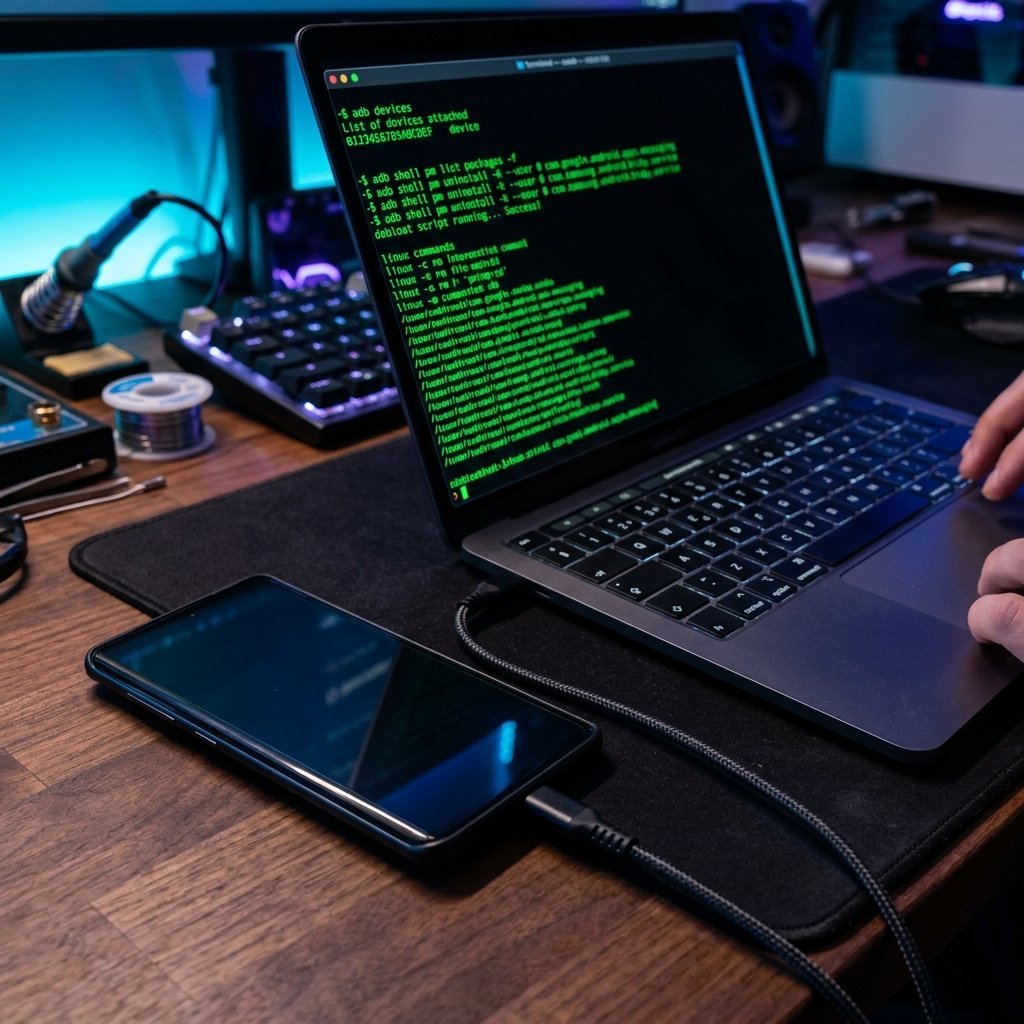
⚠️ Warning: Be careful what you uninstall via ADB. Do not remove essential system packages like the Android System UI, Bluetooth services, or the Google Play Services (unless you are intentionally doing a full de-Googled ROM flash). Stick strictly to removing browsers, social media pre-installs, and manufacturer bloatware.
Step 2: Install a Text-Only Minimalist Launcher
The standard Android home screen is a highly engineered dopamine trap. Colorful, perfectly shaped icons with bright red notification badges are psychologically designed by UI/UX experts to trigger urgency and habit loops. To break this visual conditioning, you need to completely replace your home screen launcher.
A minimalist launcher strips away icons, widgets, and wallpapers, replacing them with a stark, simple text list. Without the colorful visual cues, your brain loses the impulsive desire to tap.
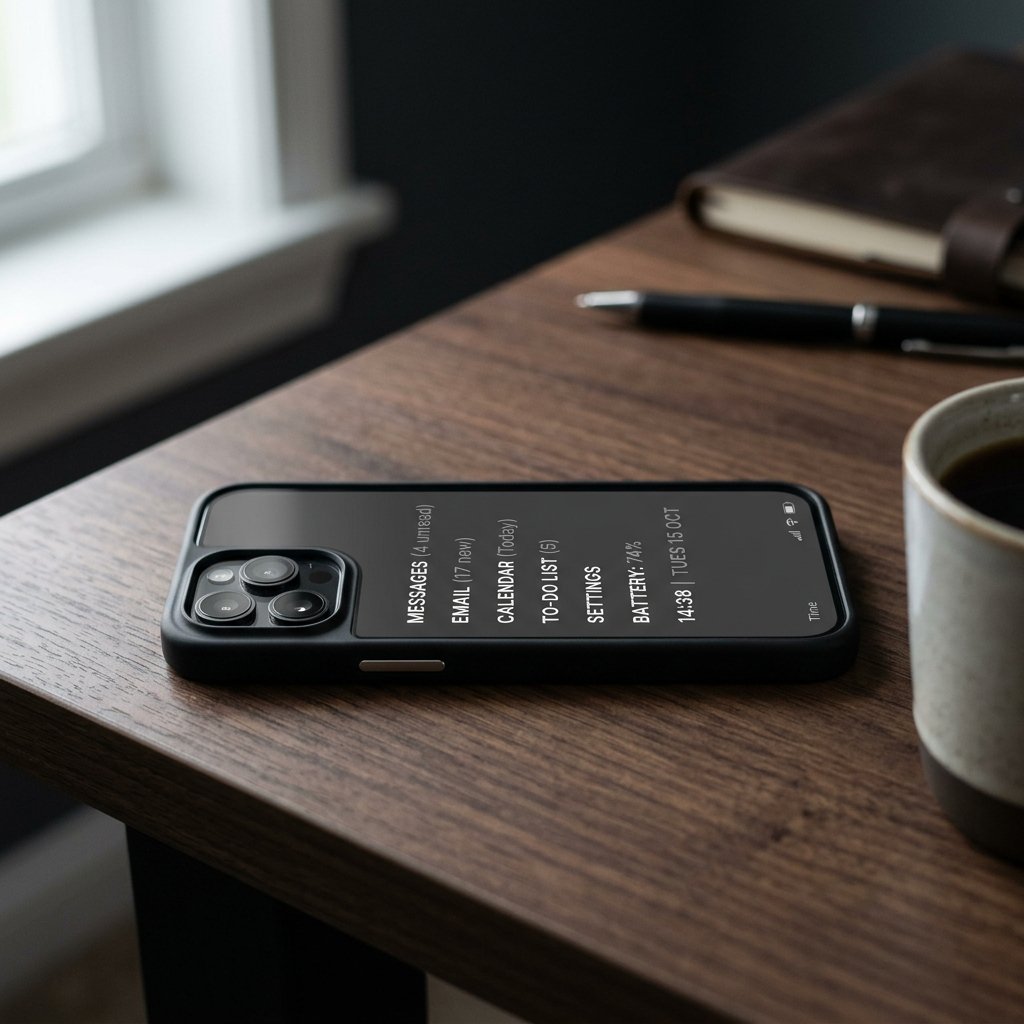
Top Minimalist Launcher Recommendations:
- Olauncher: Completely free, open-source, and aggressively minimal. It gives you a clean list of text, and you can hide the status bar for zero distractions. It forces you to search for apps by typing, which adds a layer of intentionality to every action.
- Before Launcher: Features a fantastic, robust notification filter that batches your notifications so you only see them when you choose to check them, not when the app demands your attention.
- Niagara Launcher: Slightly more stylish but highly ergonomic for one-handed use. It relies on a vertical alphabetical list that is lightning-fast but lacks the visual noise of grid-based launchers.
Once installed, set your chosen launcher as the default home app. Here is the critical part: Hide every app except your absolute core utilities. Your home screen should only display Phone, Messages, Maps, Spotify (or your preferred podcast app), and perhaps your banking app. The goal is that when you unlock your phone, there is absolutely nothing to aimlessly scroll through.
Step 3: Trigger Automated Grayscale Modes
Tech companies spend millions on color psychology to make their apps addictive. Instagram’s vibrant gradients, Robinhood’s bright green line, and YouTube’s bright red buttons are engineered to hold your attention. Removing color from your screen makes your phone significantly less interesting to your brain. It turns a vibrant playground into a boring, utilitarian newspaper.
While you can manually toggle grayscale in Android’s Accessibility settings, relying on willpower to toggle it on and off doesn’t work. You will eventually turn it off to view a photo and forget to turn it back on. You need to automate it.
Setting Up Bedtime Mode / Digital Wellbeing:
- Navigate to Settings > Digital Wellbeing & parental controls.
- Select Bedtime mode (or Wind Down, depending on your Android version).
- Customize the schedule. Instead of just setting it for when you sleep, set it to run for the vast majority of your waking day—for example, from 8:00 AM to 8:00 PM (or whenever you need to be productive and focused).
- Ensure Grayscale is toggled on within the Bedtime mode settings.
If you want even more granular control, automation apps like Tasker or Macrodroid can be programmed to trigger grayscale mode automatically whenever you open specific apps (like a web browser, if you chose to keep one) or during specific locations (like arriving at your office or home network).
Step 4: Lock Down Notifications and Add Friction
Even with a text launcher and a gray screen, a rogue notification can pull you back into the digital vortex. You need to be ruthless about what is allowed to interrupt your life.
The Notification Purge
Go to Settings > Apps and systematically turn off notifications for everything except direct human communication (Phone calls, SMS, Signal, WhatsApp) and essential time-sensitive alerts (Calendar events, Navigation). Email notifications should be completely disabled. You will check your email on your computer, or manually open the app on your phone when you decide it is time to check it.
The Browser Dilemma
The mobile web browser is the biggest loophole on a modded dumbphone. If you keep Chrome installed, you can still easily access Reddit, Twitter, and endless news feeds. If you truly want to kill dopamine loops, use ADB (from Step 1) to uninstall Chrome entirely.
If you absolutely need a browser for captive Wi-Fi portals at coffee shops or emergency searches, install a privacy-focused, barebones browser like DuckDuckGo or Firefox Focus. Disable all of its notifications, and do not put it on your home screen. Make it slightly annoying to find and open.
App Blockers: Adding Intentional Friction
If there is one specific app you cannot uninstall for work or family reasons, but you find yourself mindlessly opening it, install a friction app like One Sec or Opal. These apps force you to wait 10 seconds and take a deep breath before the target app opens. This tiny delay breaks the subconscious “impulse loop,” giving your logical brain a moment to ask, “Do I really need to open this right now?”
The Result: A Tool, Not a Toy
By following this blueprint to turn Android into a dumbphone, you’ve saved yourself hundreds of dollars on a niche secondary device. More importantly, you’ve created a piece of technology that respects your time and attention span.
Your newly modded Android dumbphone will still seamlessly handle group texts, provide flawless turn-by-turn navigation on road trips, let you scan boarding passes at the airport, and stream your favorite Spotify playlists. But when you look at it while standing in line at the grocery store or sitting on the couch, the gray, text-only interface will offer you absolutely nothing to scroll, swipe, or passively consume.
You’ve successfully turned your pocket slot machine back into a boring, highly functional tool. Now, put it away and look around.
You can read more about My 100% Offline Productivity App Stack for Ultimate Deep Work.